Build Your Personal AI Assistant with Claude Code
How to automate the low-stakes tasks consuming your time so you can focus on the high-stakes decisions that actually matter

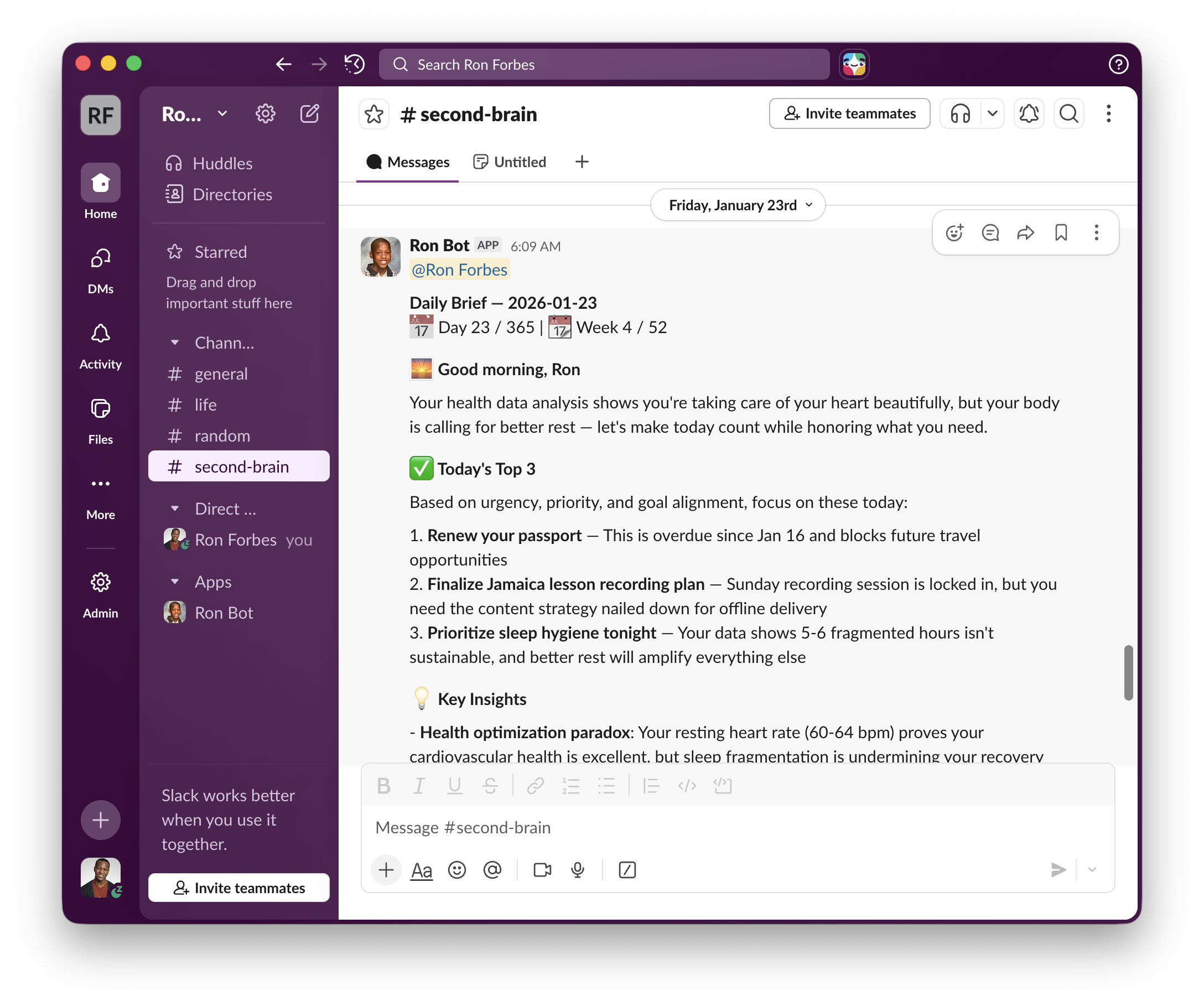
TL;DR: Build your own AI assistant in 15 minutes. No coding. I'll show you exactly how I went from zero to 2,000+ organized notes.
We finally have AI superpowers. You can generate code, analyze data, automate workflows. The future is here.
So why do you feel more overwhelmed than empowered?
Every week there's a new AI tool, a new technique, a new "game-changer" you're supposed to learn. Meanwhile, you're hearing that AI is coming for your job. The anxiety is real.
Here's how I think things might play out: AI isn't going to take your job. The AI-native person who augments their productivity with AI is going to take your job.
And that person wasn't born understanding neural networks or transformer architectures. That person started learning just a few months ago by building something simple. Not by mastering every AI tool. Not by becoming an engineer overnight. They started by building their very own personal assistant.
In case you're new here, I'm Ron, a product manager at Meta Quest. I'm a PM who started learning how to vibe code with Claude Code, but I quickly realized you could use Claude Code for much more than just software development. Over the past month, I've built RonOS: a personal operating system with linked notes, automated meeting summaries, daily priorities, and insight synthesis. It's also my writing and thinking partner. It helps me go from idea to outline to draft to published content much faster.
I didn't set out to build this. I just started automating one annoying thing. Then another. Then another. It compounded.
In this guide, I'll show you how to build YouOS, your own personal operating system. Not a copy of mine. Yours. One that works the way your weird brain works.
No engineering background required. Just 15 minutes and the willingness to start.
We're Entering the Era of Personal Software Development
For the first time in history, you can build software that works exactly how YOU work. Not how Asana thinks you should manage tasks. Not how Empower thinks you should view your budget.
Software that fits your idiosyncratic, weird, perfectly-logical-to-you way of thinking.
Real examples from my life:
-
Daily brief that connects my thinking: Every morning I get a brief on my phone with insights from recent journaling, key themes from my work, my three priorities for the day, and how my current thinking connects to my broader goals.
-
Budget tracking that reflects my values: Instead of categories like "Dining Out," I see how my spending aligns with what I actually value: health, learning, growth, experiences, and relationships. That's insight I can act on.
-
Meeting intelligence for back-to-back days: Claude Code processes my meeting notes in real-time. At the end of the day, I have a clean, prioritized list of what needs action.
The shift:
Traditional software forces you into THEIR boxes. Personal software fits YOUR boxes. You build exactly what you need, iterate as you evolve, and own your data completely.
But here's the requirement: You have to take initiative. The software won't build itself.
You Don't Need to Be Technical
Here's what shocked me:
People in completely non-technical roles are building with AI TODAY. Teachers, writers, therapists, lawyers, small business owners, stay-at-home parents managing household chaos.
I'm a PM who hasn't written production code in years. I build stuff by vibing with Claude Code, describing what I want and iterating.
If I can do it, you can do it.
Hint: We might have a guest post soon from someone in a very non-technical role who's unlocking their own superpowers through AI. Stay tuned.
The barrier isn't technical knowledge. The barrier is believing you can do it and taking action.
Why Start with a Personal Assistant
When I tell people I built RonOS with AI, they ask: "But what should I build first?"
I get where they're coming from. You CAN build anything now, which paradoxically makes it nearly impossible to decide WHAT to build.
The solution: Build your personal assistant.
An assistant that handles the tedious stuff you're ALREADY doing:
- Processing meeting notes so you have clarity, not chaos
- Organizing daily priorities so you know what matters
- Synthesizing insights from your thinking
- Managing your knowledge base so insights don't disappear
Why this approach works:
1. You solve your own problems first: Your personal assistant reveals what workflows are actually valuable to automate.
2. Baby steps with immediate value: You automate the things you're already doing. Every automation saves time immediately.
3. Compound learning: Week 1 you learn how Claude Code works with files. Week 2 you learn to synthesize new insights from your data. By month 2 you're building custom tools that seemed impossible before.
My RonOS journey:
I didn't plan to build a personal operating system. I just felt like I was running from meeting to meeting, drowning in notes. So I asked Claude Code: "Help me organize today's meeting notes into something useful."
That worked. So I tried: "Extract the action items and who owns them."
That worked too. So I kept going. Then I automated my daily priorities. Then my insight synthesis from years of hastily written notes. Then my budget tracking.
A few weeks later, I had organized notes, automated workflows, and a system that's already helping me live more intentionally. It happened through compound automation, not a master plan.
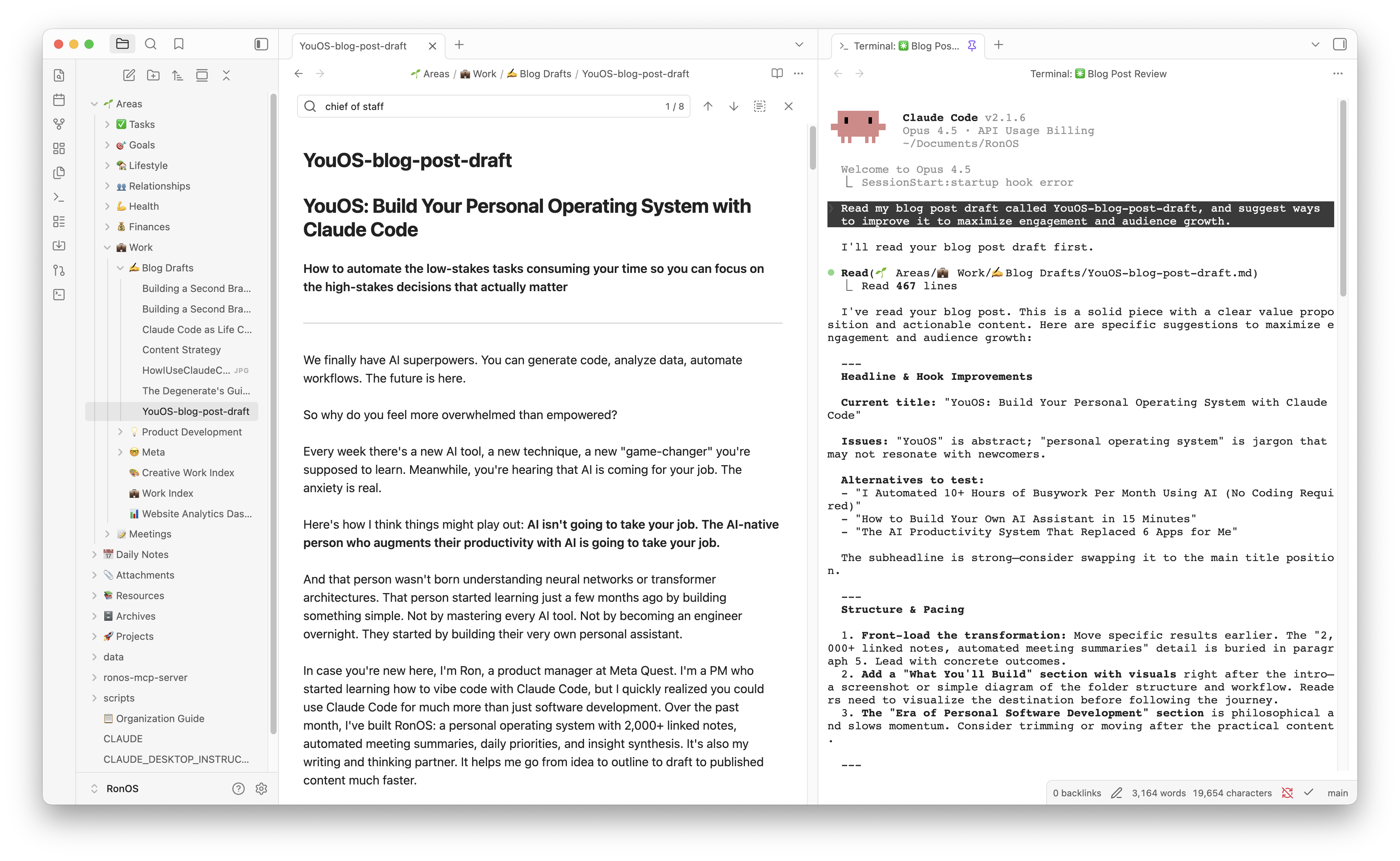
Understanding the Tools: Chat vs Chief of Staff
Most people miss the critical distinction between Claude Chat and Claude Code.
Claude Chat: Transactional. Best for quick questions, web research, one-shot content drafting. You manually copy/paste, upload files, recreate context every session. Like texting an advisor.
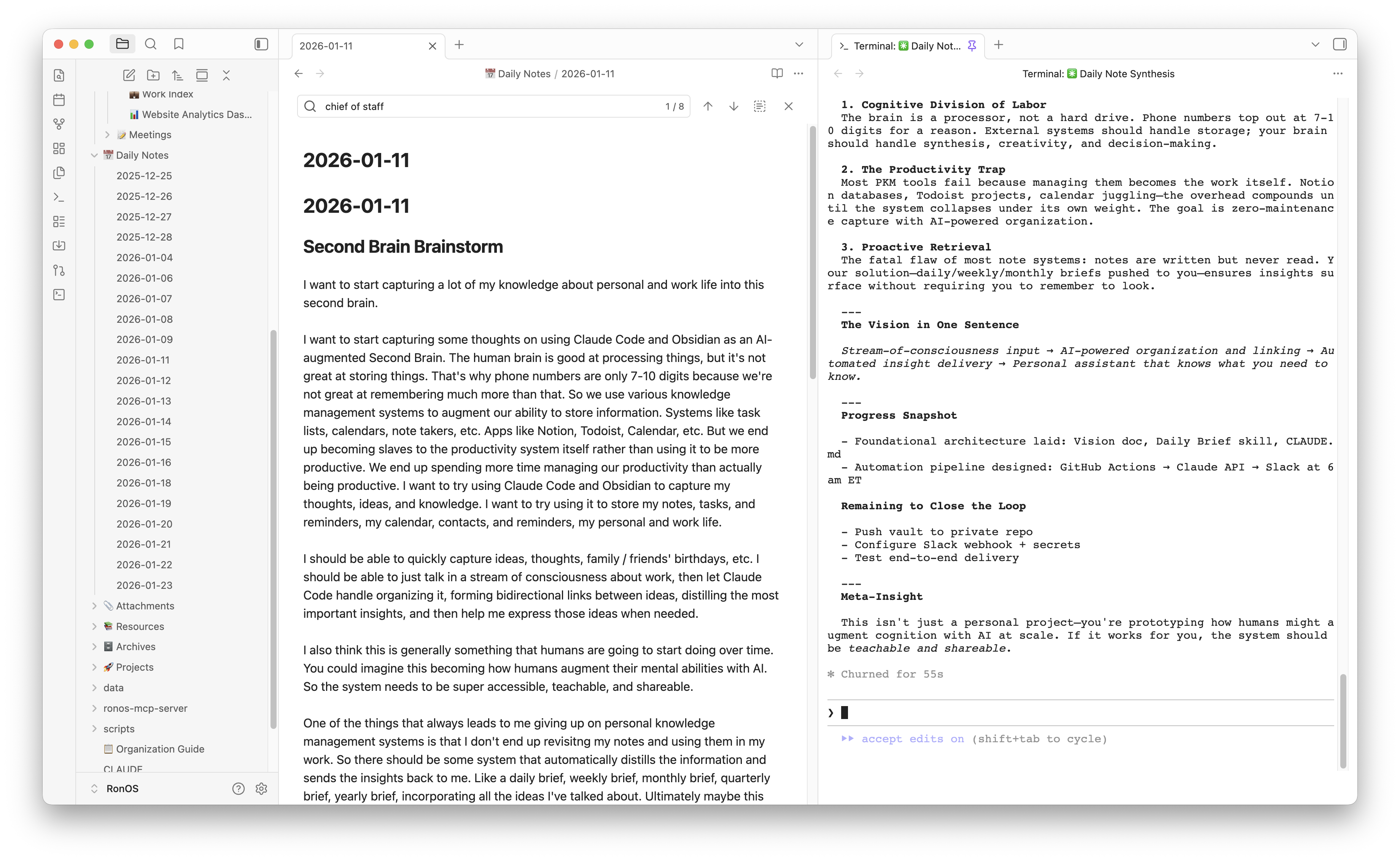
Claude Code: Autonomous agent with file system access. Best for multi-step workflows, file operations, rapid iteration. Maintains context across sessions, reads/writes your files, executes tasks independently. Like having a chief of staff with access to your office and systems to be your strategic partner, force multiplier, and integrator of workstreams.
What takes 30 minutes of copy-paste in Claude Chat takes 2 minutes of delegation in Claude Code.
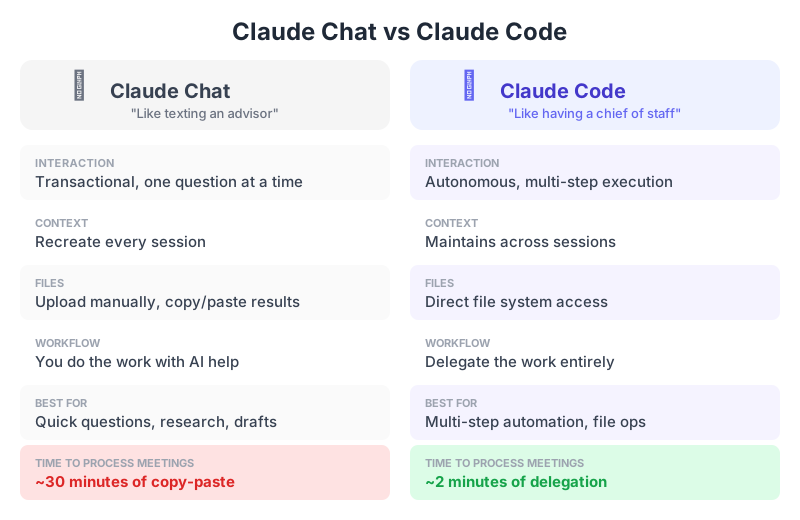
The difference between asking for help and delegating entirely
Here's the delegation insight:
When I tell Claude Code to process my meetings, I'm not asking it to help me do the work. I'm delegating the work entirely.
I think this is a skill that will define career success in the AI era. The future belongs to people who can have a clear vision, communicate it in bite-sized pieces to an agent, validate what the agent produces, and orchestrate several agents at once.
Sound familiar? This is product management. And it's a learnable skill.
Getting Started: The 15-Minute Setup
What you need:
- Claude Code (requires Claude Pro subscription $20/mo or higher)
- Obsidian (free)
- VS Code or Claude Desktop (free, optional but recommended)
- 15 minutes
1. Your First Taste of Magic (5 min)
Before we set up your personal operating system, let's see what Claude Code can actually do. We're going to clean up that messy Downloads folder you've been ignoring.
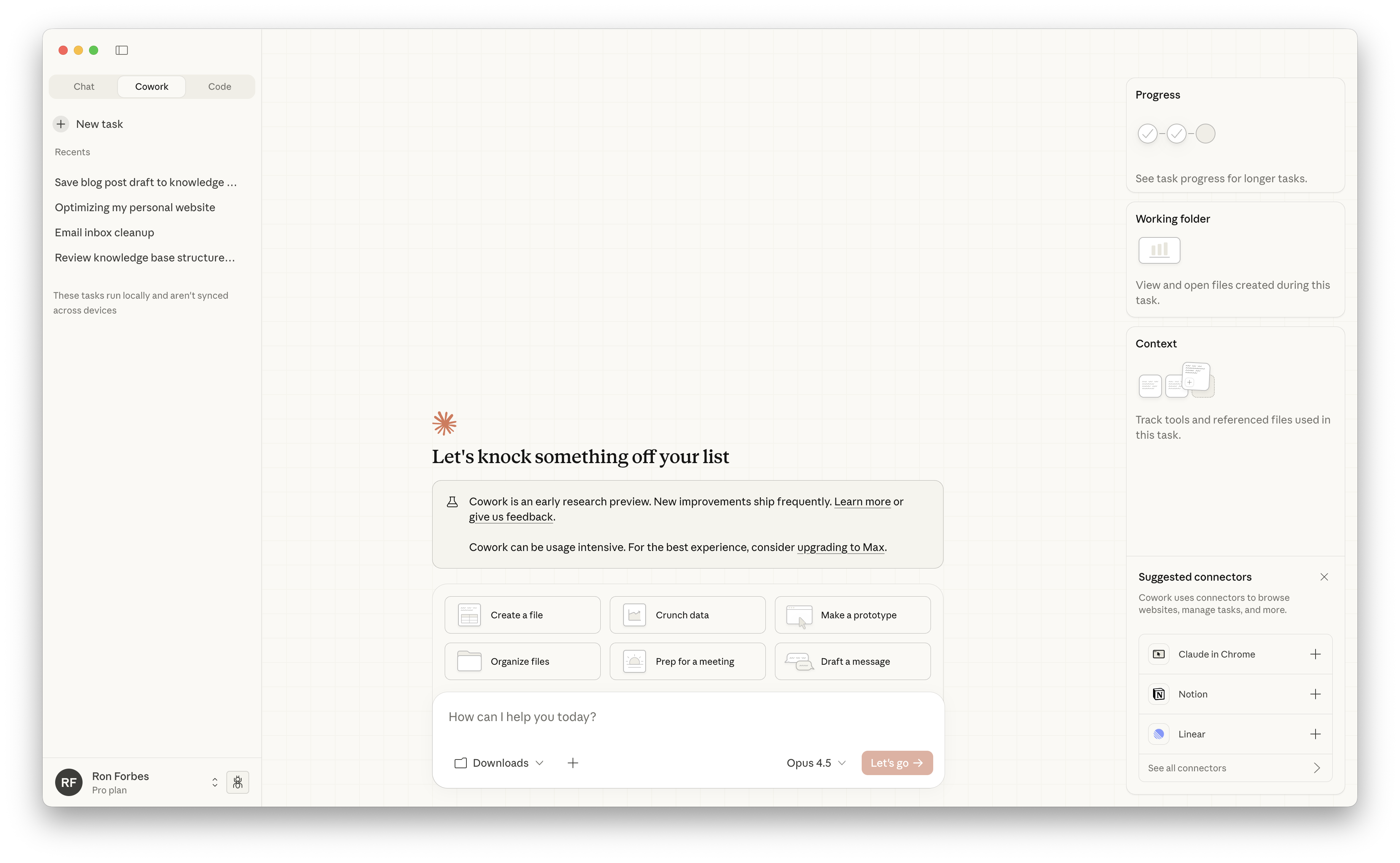
Install Claude Desktop (simplest option):
- Download from claude.ai/download and install
- Sign in with your Claude account
- Click the "Cowork" tab at the top
- Click "Select folder" and choose your Downloads folder
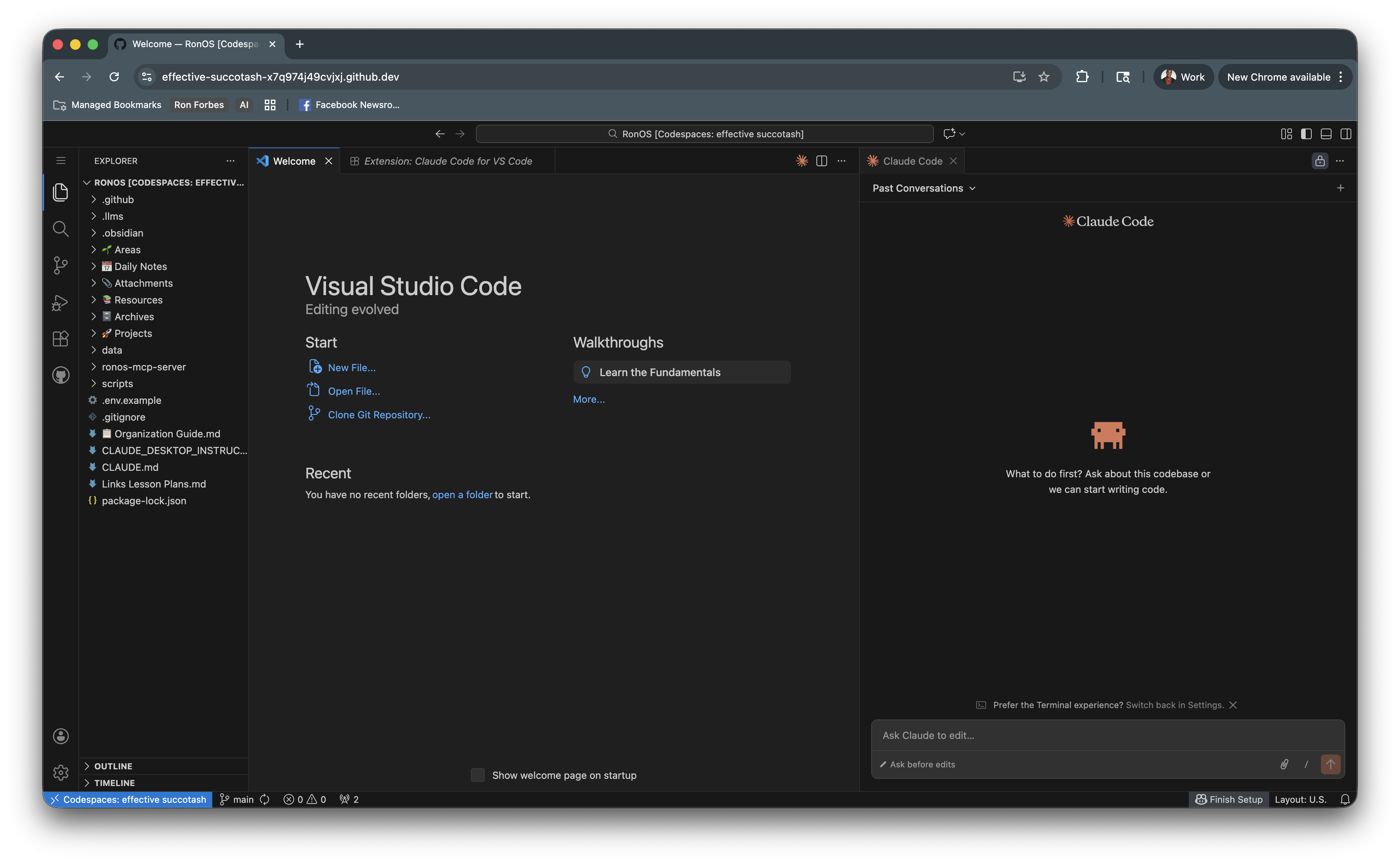
Alternative: VS Code + Claude Code Extension:
- Download VS Code from code.visualstudio.com and install
- Open VS Code
- Click the Extensions icon in the left sidebar (or press
Cmd+Shift+X/Ctrl+Shift+X) - Search for "Claude Code" and click Install
- Click the Claude icon in the left sidebar and sign in
- Click "Open Folder" and select your Downloads folder
Now run your first automation:
Tell Claude Code:
"Analyze what's in this folder and organize the files into logical subfolders based on file type and content. Before you move anything, show me your proposed organization plan and let me approve it."
Watch Claude work. It will:
- Scan your folder and analyze what's there
- Propose a logical folder structure (e.g., PDFs, Images, Receipts, Work Documents)
- Wait for your approval
- Move everything into place
What just happened: You delegated a task you've been putting off for months. Claude read your messy folder, made sense of it, and organized it for you, all while asking permission before making changes.
This is the core loop: describe what you want → let Claude propose a solution → approve and execute.
Boom. You're an AI wizard.

How did that feel? Reply and tell me what Claude found as it cleaned up your Downloads folder.
Now let's build a system to apply this power to the rest of your life.
2. Create Your Workspace (2 min)
On Mac:
- Open Finder
- Navigate to Documents (or wherever you want your system to live)
- Right-click → New Folder → Name it "[YourName]OS" (e.g., "RonOS")
- Open your new folder
- Create three subfolders inside:
meetings,daily-notes,tasks
On Windows:
- Open File Explorer
- Navigate to Documents
- Right-click → New → Folder → Name it "[YourName]OS"
- Open your new folder
- Create three subfolders inside:
meetings,daily-notes,tasks
Your folder structure should look like this:
YourNameOS/
  meetings/
  daily-notes/
  tasks/
3. Set Up Obsidian (5 min)
Obsidian is where you'll write and organize your notes. It's a beautiful, fast note-taking app that works with plain text files.
Install Obsidian:
- Download from obsidian.md and install
- Open Obsidian → "Open folder as vault" → Select your YourNameOS folder
- You now have a note-taking app pointed at your workspace
Understanding Markdown:
All your notes will be markdown files (.md). Markdown is simple text formatting that looks good in Obsidian. Here's everything you need to know:
# Big heading
## Smaller heading
### Even smaller

**Bold text**
*Italic text*

- Bullet point
- Another bullet

1. Numbered list
2. Second item

> This is a quote or callout
To create a new note in Obsidian:
- Press
Cmd+N(Mac) orCtrl+N(Windows) - Type your note title at the top (this also becomes its filename)
- Start writing using the formatting above
That's it. Don't overthink it — you'll learn more as you go.
4. Connect Claude Code to Your Workspace (3 min)
Now point Claude Code at your new YourNameOS folder. You have three options:
Option A: Claude Desktop (simplest)
- In Claude Desktop, click "Select folder" again
- This time choose your YourNameOS folder
- You're ready to go
Option B: VS Code + Claude Code Extension (recommended for power users)
- In VS Code, click "Open Folder" and select your YourNameOS folder
- Claude Code is now pointed at your workspace
Option C: Obsidian + Terminal Plugin (stay in one app)
- In Obsidian, click the Settings gear (bottom left)
- Go to Community plugins → Turn off Restricted mode → Browse
- Search for "Terminal" and install the Terminal plugin
- Enable the plugin, then close Settings
- Press
Cmd+P(Mac) orCtrl+P(Windows) → type "Terminal" → select "Open terminal" - In the terminal that opens, type
claudeand press Enter - Follow the prompts to sign in with your Claude account
All three options give Claude Code the same capabilities. Pick based on where you prefer to work:
- Claude Desktop is great for a simple, non-technical UI
- VS Code lets you code, write, and review changes Claude suggests; great for power users
- Obsidian lets you write with formatting automatically applied; great for focused writing
Your First Workflow: Meeting Intelligence System
Problem it solves:
When you're in back-to-back meetings all day, you can't stop between each one to process notes. By 6pm, you might have a dozen sets of notes with no clarity on what needs action.
The automation:
Step 1: Create your structure
YouOS/
  meetings/
    raw/          (dump meeting notes here during the day)
    summaries/    (Claude generates clean summaries)
  tasks/
    active.md     (current action items)
Step 2: Process meetings at end of day
After each meeting, dump your notes into /meetings/raw. Don't organize. Just brain dump. You can even put them all in one file if you like.
At the end of the day, tell Claude Code:
"Process all meeting notes in /meetings/raw from today:

1. Create clean summaries in /meetings/summaries
2. Extract ALL action items to /tasks/active.md
3. Group by priority: [HIGH], [MEDIUM], [LOW]
4. Include who owns what and deadlines

Use this priority framework:
- HIGH: Blocks someone else or has a hard deadline this week
- MEDIUM: Important but flexible timing
- LOW: Good to do but no immediate dependency"
Time saved: 30-45 minutes of manual processing per day. That's 10-12 hours per month now spent on actual strategic thinking instead of administrative cleanup. This gets even easier with AI meeting note taking tools like Zoom, Granola, and Otter. Now you can focus fully on the discussion and know that AI will extract the outcomes and action items into your knowledge base.
Adding a Personal Layer: Daily Operating System
Once you have meeting intelligence working, consider adding a personal layer.
The concept: Create morning and evening routines that take 2-3 minutes each but give you clarity for the whole day.
Step 1: Create your commands folder
In your YourNameOS folder, create this structure:
YourNameOS/
  .claude/
    commands/
      morning.md
      evening.md
  meetings/
  daily-notes/
  tasks/
Pro tip: you may need to show hidden folders (those starting with a dot) in order to see .claude. On Mac: In Finder, press Cmd+Shift+..
On Windows: In File Explorer, click View → Show → Hidden items.
Step 2: Create your morning command
Create a file called morning.md in the .claude/commands/ folder with this content:
# Morning Routine

Create today's daily note in /daily-notes with the filename format YYYY-MM-DD.md (e.g., 2025-01-24.md).

Ask me the following questions one at a time, wait for my response, then move to the next:

1. How are you feeling this morning? (energy level, mood, anything on your mind)
2. What are your top 3 priorities for today?
3. What's one thing that would make today feel successful?

After I answer, create the daily note with:
- Date and day of week as the title
- My energy/mood check-in
- My top 3 priorities as a checklist
- My success criteria for the day
- A "Notes" section for capturing thoughts throughout the day

Keep the format clean and scannable.
Step 3: Create your evening command
Create a file called evening.md in the .claude/commands/ folder with this content:
# Evening Reflection

Read today's daily note from /daily-notes.

Ask me the following questions one at a time, wait for my response, then move to the next:

1. What got done today? What didn't?
2. What's one thing you learned or noticed about yourself today?
3. What are you grateful for today?

After I answer, update today's daily note by adding an "Evening Reflection" section with:
- Completed items (check off what got done from the morning priorities)
- What I learned
- Gratitude note
- Any carry-over items for tomorrow

If any tasks didn't get done, ask if I want to add them to tomorrow's priorities.
Step 4: Run your commands
In Claude Code, simply type:
/morningto start your morning routine/eveningto do your evening reflection
That's it. Claude reads your command file and follows the instructions.
The key: These are YOUR templates. Edit them to match how you think. Maybe you want to track exercise, creative projects, or habit streaks. Make it yours.
The compounding insight: After 30 days, you have 30 daily notes showing patterns in what you avoid, when you have energy, and what types of days feel successful. After a few days, you can start asking Claude to analyze your patterns and give you real data about how you actually work.
How This Compounds
My results after 30 days:
- 2,000+ organized notes
- 10-12 hours saved per month on meeting processing
- Daily insights I actually act on
- A system that grows smarter as I use it
The Critical mindset shift: Do NOT try to build everything on day one.
Week 1: Pick ONE thing (meeting summaries, daily notes, task extraction). Get it working. Use it for a week.
Week 2: Add ONE more thing that builds on the first. Link meeting summaries to tasks. Create weekly reviews.
Month 2: Now you have enough data to get insights. Ask Claude to analyze your meeting patterns, find what you consistently avoid, compare stated priorities vs completed tasks. Build custom tools and integrations you couldn't have imagined on day 1.
My Actual RonOS Timeline:
Here's exactly how my system evolved, pulled from my git history:
┌─────────────────────────────────────────────────────────────────────────────┐
│  DAY 1-2: FOUNDATION                                                         │
│  ────────────────────                                                        │
│  • Initial commit + basic folder structure                                   │
│  • Daily brief workflow                                                      │
│  • First daily notes                                                         │
└─────────────────────────────────────────────────────────────────────────────┘
                                    │
                                    ▼
┌─────────────────────────────────────────────────────────────────────────────┐
│  DAY 3: AUTOMATION LAYER                                                     │
│  ───────────────────────                                                     │
│  • Claude PR & Code Review workflows                                         │
│  • Personal brand docs                                                       │
│  • Cascading briefs (weekly → monthly → quarterly → annual)                  │
└─────────────────────────────────────────────────────────────────────────────┘
                                    │
                                    ▼
┌─────────────────────────────────────────────────────────────────────────────┐
│  DAY 4: ORGANIZATION SYSTEMS                                                 │
│  ───────────────────────────                                                 │
│  • Nightly organization automation                                           │
│  • Task Management System                                                    │
│  • Meeting Notes System                                                      │
│  • Goal Tracking with OKRs                                                   │
│  • Emoji folder structure ✨                                                 │
└─────────────────────────────────────────────────────────────────────────────┘
                                    │
                                    ▼
┌─────────────────────────────────────────────────────────────────────────────┐
│  DAY 6: LIFE INTEGRATIONS                                                    │
│  ────────────────────────                                                    │
│  • Health tracking integrations                                              │
│  • Financial docs & budget tracking                                          │
│  • Work knowledge bases                                                      │
└─────────────────────────────────────────────────────────────────────────────┘
                                    │
                                    ▼
┌─────────────────────────────────────────────────────────────────────────────┐
│  DAY 8+: ADVANCED FEATURES                                                   │
│  ─────────────────────────                                                   │
│  • MCP server for Claude integration                                         │
│  • Weekly brief automation                                                   │
│  • Analytics & health data sync                                              │
│  • 2,000+ notes and growing...                                               │
└─────────────────────────────────────────────────────────────────────────────┘
I didn't plan any of this out in advance. I just kept solving the next most annoying problem, freeing up mental capacity to focus on what really counts.
High-Stakes vs Low-Stakes: Where Your Energy Should Go
A lot of my day is consumed by low-stakes tasks: reformatting notes, copying action items, searching for that thing someone said three weeks ago.
Sadly, the high-stakes decisions often get whatever energy is left at 6pm: Should we prioritize this feature? How do we balance user experience with technical constraints? How do I show up with presence for the people I care about? Am I living deliberately or just responding to whatever comes at you?
It turns out I had the equation backwards.
Low-stakes tasks should be automated. High-stakes decisions should get your best energy.
That's what I'm loving about building RonOS. It automates the low-stakes noise so I can devote my energy to what matters most.
Your Next Steps: Start Today
Not tomorrow. Not next week. Today.
Choose one workflow:
- Professional: Meeting intelligence
- Personal: Daily operating system
- Or something specific to YOUR life
Set up in 15 minutes. Follow the setup guide above. Get your first automation working. Don't overthink it.
Ship it messy. Your first version will be rough, and that's okay. The goal is to start the compounding process.
Remember:
- You don't need to be technical
- You don't need to understand everything
- You just need to start
Final Thought
We're entering an era where the limiting factor isn't AI capability — it's your willingness to take initiative.
Claude Code gives you superpowers. What you do with them is up to you.
AI isn't going to take your job. But the person who learns to delegate to AI, orchestrate agents, and build custom solutions for their unique needs? They might.
I built RonOS one automation at a time. You can build YouOS the same way.
The question isn't "Can AI help me?"
The question is "What can I delegate to AI today?"
Build With Me
I'm documenting my entire RonOS journey: the wins, the failures, the "wait that actually worked?" moments. And I'm sharing everything I learn about building with AI as a non-engineer.
Join readers who are building their own YouOS systems:
No fluff. No hype. Just a PM building in public and sharing what actually works. I'm dropping more advanced experiments with RonOS as my personal assistant. Subscribers get them first.
See you in your inbox.
Get the Obsidian + Claude Code starter vault. Coming soon
The setup I use to run my life — MCP servers, daily briefs, templates. Free when you subscribe to The Degenerate.
You're a Designer Now
I rebuilt ronforbes.com in an afternoon using Claude Design and Claude Desktop. The tools changed. The agency was always yours. Here's what I learned.
You Don't Have to Wait for KAIROS
A leaked Claude Code daemon called KAIROS and Karpathy's viral knowledge base blueprint just revealed the future of personal AI. Here's what's actually working today, and how to start building it this weekend.
The Week the Proactive AI Assistant Went Mainstream
Claude shipped computer use, Dispatch, Channels, and scheduled tasks in eight weeks, replicating what previously required OpenClaw and a self-hosted server. Here's what changed and how to set it up.
Your Second Brain Is Not Optional Anymore
AI didn't create the information overload problem, it made it impossible to ignore. Here's how to build a personal AI second brain using Claude Cowork or Claude Code in a single day, whether you're technical or not.